EmailPhotos.com Theme Settings
Send big photos by email

Email photos that actually fit.

The fastest way to email photos that are too big to send. Compressed in your browser, never uploaded. Sent in a tap.

Drop photos and videos to compress and email

Privacy on by default

Files never leave your device. EXIF and GPS are stripped automatically.

Auto compression

Quality balanced across all your files. Videos transcoded right in the browser.

One-tap send

Hands the bundle to Mail, Gmail, Messages, whatever you've got installed.

Email photos in three steps

No app, no signup, no upload. Drop your photos, let your browser compress them, and send.

Drag photos into EmailPhotos.com to email photos straight from your browser
1

Drop your photos

JPEG, PNG, HEIC, WebP, AVIF, from your phone or camera roll. iPhone HEIC works in every browser.

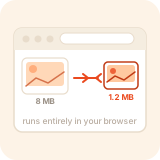
Email photos compressed in your browser: files stay on your device, never uploaded
2

We compress, in your browser

Each photo gets its share of the 25 MB email budget. Quality tuned per-file. Your originals never leave your device.

Send the email: your photos are attached and ready to go in any mail app
3

Send by email

One tap opens your mail app with everything attached: Mail, Gmail, Outlook, AirDrop, Messages.

Send big photos by email, without losing quality or uploading them

EmailPhotos.com is a browser-based tool that compresses photos and videos to fit your email's attachment size limit. Drop in a stack from your phone or camera roll, and the page hands them to your mail app, ready to send. Nothing is uploaded. Nothing is stored on a server.

How it works in three taps

  1. 1. Drop or pick photos. Any format: JPEG, PNG, HEIC, WebP, AVIF, MP4, MOV. From a phone, a Mac, a Windows laptop. iPhone HEIC works on every browser.
  2. 2. We compress them, smartly. Each file gets its share of a 25 MB email budget. JPEG quality and dimensions are tuned per-photo until the whole batch fits. Videos transcode to 720p H.264 right in your browser.
  3. 3. Send. One tap opens your phone's share sheet with the bundle attached: Mail, Gmail, Outlook, Messages, AirDrop, Slack. On desktop you'll get a download zip plus a pre-filled Gmail compose draft.

Why use a browser tool instead of a desktop app?

Guides

Practical walk-throughs for the most common questions.

Email large photos

Three reliable ways to email large photos: compress in your browser, use a cloud share link, or send a manual zip. Comparison + step-by-step.

Compress photos for email

Compress photos to fit a 25 MB email attachment limit, in your browser, without uploading. Works for JPEG, HEIC, PNG, and WebP on every modern phone.

Send multiple photos

Attach 5, 50, or 500 photos to a single email so they actually arrive. The smart way (compress in the browser), the manual way, and provider-specific limits.

Email photos from iPhone

Step-by-step for attaching one photo or many from an iPhone, with HEIC tips, Mail vs Photos app, and the easy way for big batches that bounce.

Attach photos to email

Quick guide to attaching photos in Gmail, Outlook, Apple Mail, and Yahoo on any device, plus the fastest fix when the attachment is too big to send.

Email size limits

The actual maximum attachment sizes across email providers in 2026, why advertised numbers are misleading, and what to do when files are too big.

Attachment too large

What 'message size exceeds maximum', SMTP 552 5.3.4, and Gmail's 25 MB attachment error mean, plus the fastest way to fix the bounce and resend.

Resize photos for email

What dimensions to resize photos to before emailing, and how to do it on iPhone, Android, Mac, Windows, or in your browser without uploading.

Send video by email

Compress and trim a video to fit a 25 MB email attachment, all in your browser. Bitrate guide, length cheat sheet, and provider-specific tips.

Email photos from Android

Step-by-step for attaching one photo or fifty from Android via Gmail, Samsung Email, or your browser. Plus how to handle batches that won't fit 25 MB.

Reduce photo file size

Five ways to reduce a photo's file size for email or upload: by quality, dimensions, format, or smart re-encoding. With side-by-side size benchmarks at each step.

Frequently asked

How do I send big photos by email?

Drop them onto EmailPhotos.com. The browser compresses each photo to fit a 25 MB email, balances quality across the batch, then opens your mail app with everything attached. Nothing uploads.

How do I email photos without losing quality?

Modern JPEG re-encoding at quality 0.8 with a 2560 px long edge is visually identical to the original on any phone or laptop screen. EmailPhotos.com's Auto quality picks per-file settings so you keep as much detail as the email budget allows.

How many photos can I send in one email?

Most providers cap a single message at 20–25 MB. With phone photos at 4–8 MB each, that's 3–4 originals or 15–25 compressed. For more than that, EmailPhotos.com auto-batches or suggests a cloud share link.

Can EmailPhotos.com see my photos?

No. Compression happens entirely in your browser using Web Workers. The site has no server to receive uploads. EXIF, GPS and camera metadata are stripped by default for privacy.

Does it work on iPhone and Android?

Yes. Safari on iOS, Chrome on Android, and every modern desktop browser. The Web Share API lets the iOS / Android share sheet pop up with all your photos attached, ready for Mail, Gmail, Messages, AirDrop and so on.

What about HEIC photos from iPhone?

Handled automatically. Safari decodes HEIC natively. Chrome and Firefox lazy-load a WebAssembly HEIC decoder when an HEIC is detected, then re-encode to standard JPEG so any recipient can open the attachment.

How do I attach a photo to an email on iPhone?

Open the Photos app, select the photos you want, tap the Share button, then choose Mail to open a new compose window with them attached. iOS will offer to resize large images, but you don't always get fine-grained control, especially with HEIC originals or 4K Live Photos. Drop the photos into EmailPhotos.com first and the browser compresses each one to fit a 25 MB attachment limit, then hands the bundle to iOS Mail, Gmail or Outlook ready to send.

How do I attach a photo to an email on Android?

Open the Photos or Gallery app, long-press to select multiple photos, then tap the share icon and pick Gmail (or your default mail app). The photos attach to a new compose window. If the total exceeds Gmail's 25 MB attachment limit, EmailPhotos.com auto-compresses them in your browser first (no upload, no app install) and hands the smaller bundle back to your mail app.

Why do my photos fail to send because they're too large?

Most email providers cap a single message at 20–25 MB. Modern phone photos run 4–8 MB each at full resolution, so four or five originals hit the limit instantly, and iPhone HEIC photos can be even bigger once they're converted to JPEG for compatibility. EmailPhotos.com solves this in your browser by re-encoding each photo at a quality and size that fits your attachment budget, so the email goes through on the first try.